Can Claude Open a Google Drive Link?
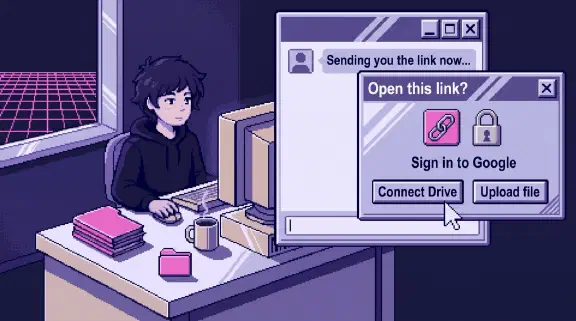
Yes, if the Google Drive connector is connected and turned on in that chat, and the Google account you connected can open the file. Without the connector, Claude has no way to sign in to Google as you, so a private file stays out of reach. Don’t fix that by setting the file to “Anyone with the link.” Four ways that work are below, and none of them needs a public file.
This comes from Anthropic’s docs as of November 4, 2026. For our own company work we keep Claude off the Drive connector, for reasons in the Google Drive safety post, so the check at the end is the one I’d run before trusting any of this.
Why a pasted Drive link doesn’t work
Check these in order. The first two cover most cases.
- The connector is off in this chat. Connecting Drive once under Customize, Connectors isn’t the whole job. In each conversation, select +, then Connectors, and turn on Google Drive.
- You connected a different Google account. Claude “mirrors your existing permissions” and only sees the account you connected. If the link opens in your browser because you’re signed in to your personal Gmail, and Claude is connected to your work account, Claude can’t open it. The same goes for a file a client shared to your other address.
- Nobody at your company turned it on. On Team and Enterprise, Drive doesn’t appear in your connector list until an Owner adds it. If you run Google Workspace with third-party apps restricted, your admin may also have to mark Claude as Trusted.
- The file is too big. Google caps exports of Docs, Sheets and Slides at about 10 MB. Over that, Claude gets the file’s name and details but not its content, which looks like it found the file and read nothing.
Without the connector, the most Claude can do is treat the link like any web page. With web search on, it can retrieve pages from URLs you give it, but that request doesn’t carry your Google sign-in, so a private file won’t open for it.
Four ways that work
| Way | How | Good for |
|---|---|---|
| Add from Google Drive | In a chat, +, then Add from Google Drive, then search or pick the file | One Doc, Sheet or Slides file you’re working on now |
| Ask with the connector on | Turn Drive on in the chat, then paste the link or describe the file | Finding files, and PDFs or Office files the picker doesn’t list |
| Project knowledge | In a project, Add files, Google Drive, then paste the URL | A file every chat in the project should know |
| Download and upload | File, Download in Google, then drag it into the chat | A one-off, or a file you’d rather not connect Drive for |
The picker lists your Docs, Sheets and Slides, and Claude reads the file’s current content from Drive each time you send a message, so edits you make in Drive reach it. With the connector on, Claude can also search and read PDFs, Word, Excel and PowerPoint files, OpenDocument files and PNG or JPEG images. Each tool call can ask for your approval first.
Projects have one catch. Drive files only go into a private project, one you haven’t shared. In a shared project the option is dimmed and says “Only accessible from private projects.” There, upload a copy instead, and remember that a copy doesn’t update when the original changes.
An uploaded file is a snapshot, and it’s the only option here that touches just that file and nothing else in your Drive.
What Claude actually gets from the file
Claude doesn’t see the file the way you do. When you pick a file or add it to a project, it gets a text version:
- Google Docs become Markdown, without the images.
- Google Sheets become CSV, with every tab.
- Google Slides become plain text.
So a chart in a deck or a screenshot in a doc never reaches Claude. If the image matters, paste it into the chat separately. Formulas don’t come through as formulas either, since CSV holds values, so ask about the numbers and check anything you’d act on.
Comments depend on which connector you use. The Drive connector can’t read comments or suggested edits. The separate Google Docs connector, the one that edits files in a pane beside the chat, can “read and work with comments and suggestions”. If the feedback you want lives in comments, turn that one on, or copy the comments into the chat.
Don’t make the file public to get around it
The tempting fix is to switch the file’s General access to “Anyone with the link.” Then anyone with the URL can open it, and the URL now sits in a chat, maybe in a project, and in your history. Remembering to switch it back is the part people skip.
It may not even work. Google Docs pages are built in the browser with JavaScript, and Anthropic’s developer docs say its web fetch tool “does not support websites dynamically rendered with JavaScript”. That’s the API’s tool, and claude.ai may behave differently, but download and upload gets you there without the risk.
Is it safe to connect Drive so links just work?
Connecting changes what Claude can reach. It’s no longer the one file you pasted. It’s nearly anything your account can open, including files someone shared with the whole company years ago, and the directory lists tools to share files and move them to the trash. Before you connect, clean up old sharing and block the share_file and trash_file tools. For other tools, the connector table shows what each can read and change.
If you only ever need one file at a time, uploading is the smaller grant.
A two-minute check
- Open the link in a browser window signed in to only the Google account you connected to Claude. If Google asks you to request access, Claude will hit the same wall.
- In the chat, select +, then Connectors, and confirm Google Drive is on.
- Ask: “Open this file and tell me its title and its first heading.” A title with no content usually means the file is over 10 MB.
- Still nothing? Go to Customize, Connectors, Google Drive, then Disconnect and Connect again.
If you’re setting this up for a team rather than just yourself, the setup planner gives you a plan after six questions, no email needed. And if the real goal is getting a job off your desk, send me your last proposal, customer reply or weekly update through Hand Off One Job, and within 48 hours I’ll send back a free setup that writes the next one.