Claude Code in the Desktop App, for Non-Developers
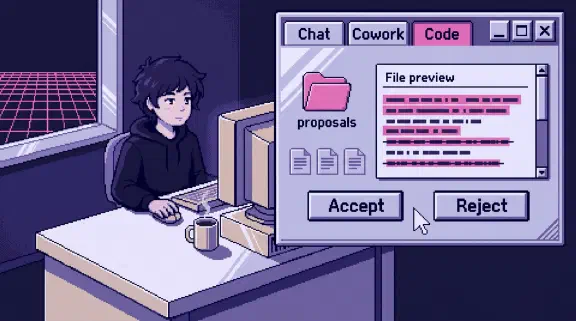
Claude Code in the desktop app is the Code tab in the regular Claude app. It reads and edits the files in a folder you pick, like the terminal version does, but you work with buttons, a diff view and permission prompts instead of typed commands (Anthropic’s quickstart). It comes with every paid plan, Pro and every Team seat included, and needs nothing else installed. Since October 6 it’s also where Anthropic sends Pro, Max and Ultra users for work that has to stay on their own computer.
It’s for people whose work is files in a folder (proposals, client notes, spreadsheets) and who have no wish to open a terminal.
I haven’t done real work in the Code tab yet. Our team runs Claude Code mostly from the terminal, inside one repository, and the guide’s prompts were checked from the command line, not in the app. So this post comes from Anthropic’s docs and pricing page, all checked on November 6, 2026, plus what our team’s terminal use taught us. For what changed in the app lately, see what changed in the desktop app. For how our team uses Claude Code, see Claude Code for non-developers.
What is Claude Code in the desktop app?
The Claude app holds three things: chat, Cowork and Code. In Anthropic’s words, “In the Claude Desktop app, Claude Code is the Code tab.” Each conversation in that tab is a session, with “its own chat history and project folder, independent of any other session.” Open three sessions on three folders and each keeps its own history and its own folder.
Before you start, you pick where the session runs. The desktop docs list four places.
| Environment | Where it runs | What it works on | Who it’s for |
|---|---|---|---|
| Local | Your computer | A folder you pick, with direct access to your files | Everyone, to start |
| Cloud | Anthropic’s servers | Repositories you pick, not a folder | Work that should keep going after you close the app or shut down the computer |
| SSH | A remote machine you connect to | Files on that machine | People who already have a server |
| WSL | A WSL 2 Linux distribution on your Windows machine | Your project, inside Linux | Windows users whose project expects Linux tools |
Start with Local. It’s the one the guide’s first chapter uses, and it keeps your files on your machine.
The app also does a few things the terminal can’t. You can attach images, PDFs and other files from the + button next to the prompt box, or drag them in. The terminal version has no attachments at all. In a local session you can click an HTML, PDF or video path in the chat to open it in the Browser pane, and you can edit files in the session’s folder yourself from the file pane, except a few settings files that are view-only.
How do you turn on Claude Code in Claude Desktop?
You need a paid plan. The quickstart says “Claude Code requires a Pro, Max, Ultra, Team, or Enterprise subscription,” and the pricing page marks it “No” on Free. Pro is $17 a month billed yearly ($200 up front) or $20 monthly. On Team, “Claude Code is included with every Team plan seat”, and a standard seat is $20 a month billed yearly ($25 monthly). Whether a seat pays off for a few people is its own question, and Is Claude Team worth it works through it.
Download the app from the quickstart (Mac, Windows x64 or ARM64, and Linux in beta for Ubuntu and Debian), sign in and click Code at the top of the sidebar. You don’t install Node or the command-line tool. Chapter 1 of the guide has every click.
If the tab won’t open, here’s what it’s telling you.
| What you see | What it means | What to do |
|---|---|---|
| A prompt to upgrade | You’re on Free | Subscribe to a paid plan |
| A 403 error | A sign-in problem | “Sign out and back in from the app menu. This is the most common fix.” |
| Your computer grayed out, with “Disabled by your organization” | Your administrator turned off local sessions | Ask whoever manages your laptop |
| No Code tab at all on a company plan | The admin console has a Desktop setting that controls access to Claude Code in the desktop app | Ask whoever runs your company’s Claude account. The Team plan setup post shows where its admin console is |
Can you use Claude Code without the terminal?
Yes, for most work. A few things still pull one in.
- Git, sometimes. Only sessions that run in their own worktree need it. Windows versions before 1.49585.0 asked for Git before any local session, so if you see that prompt and aren’t using worktrees, update the app.
- WSL on Windows, when a project expects Linux tools. Ours does, and getting it running for a new Windows user is a small project of its own.
- Commands that need a terminal panel. Commands with no argument form, such as
/permissions, reply with “isn’t available in this environment”./configopens Settings > Code (or Settings > Claude Code) instead. - Scripting. Running Claude Code from a script with
--printis “Not available. Desktop is interactive only.” Agent teams are terminal-only too.
The app has a terminal pane, opened with Ctrl+`, for when you want to run a command alongside a session. You never have to open it.
Claude Code vs Claude Desktop: what’s the difference?
Claude Desktop is the app. Claude Code is one tab in it, and also a separate program you can run in a terminal. Anthropic says Desktop “runs the same underlying engine with a graphical interface.” You can run both on the same project at the same time. Each keeps its own list of sessions, you can bring a terminal session into the app, and they share settings and the project’s CLAUDE.md files, the instructions Claude reads at the start of every session. They also share one usage allowance: the usage ring shows “your plan usage, which is shared across all your Claude Code surfaces.”
Inside the app, the three tabs do different jobs.
- Chat answers questions and writes in the conversation.
- Cowork hands back finished work. Since October 6, new Cowork tasks on Pro, Max and Ultra run in the cloud, “and you can’t switch back.” On Team, Cowork can run in either place, with cloud on by default.
- Code works on a folder on your computer, and for Pro, Max and Ultra it’s now the way to keep a task local: “For new tasks that run only on your computer, use Claude Code in the desktop app.”
Chat and Cowork are also merging into one conversation, rolling out on Pro, Max and Ultra first, with Team in beta. “The model picker and the ‘Code’ tab are where they were.” The full comparison, and why our team picked the terminal, is in Claude Code vs Cowork.
One more difference matters if you’re buying for a company. Computer use and Dispatch are Pro, Max and Ultra only: “It is not available on Team or Enterprise plans.” The setup I sell is built on Claude Team, so nobody I set up gets those two yet.
Which permission mode should you start in?
The mode decides how often Claude stops to ask you. The desktop docs list five. You switch with the mode selector under the prompt box, or Cmd+Shift+M (Ctrl+Shift+M on Windows). Shift+Tab doesn’t cycle modes in the app the way it does in the terminal.
| Mode | What Claude does | When I’d use it |
|---|---|---|
| Manual | Asks before editing files or running commands. You see a diff and accept or reject each change | Your first sessions, and any folder you care about |
| Plan | Reads and explores, then proposes a plan without editing your files | Before a big change |
| Accept edits | Accepts file edits and simple file commands, still asks before other commands | A folder you trust, on work you’ll review after |
| Auto | Runs without routine prompts, while a background classifier checks actions like commands and network requests against your request | Later, once you know what it does |
| Bypass | Skips permission prompts. Anthropic says “Only use this in sandboxed containers or VMs” | Not on your laptop. On Team and Enterprise there’s no settings toggle, and company policy decides |
Start in Manual. The guide tells readers to pick it on day one, because a permission prompt is a question and you’re allowed to say no. That diff is also your undo before the fact: a change you reject never lands. The mode you pick in a local session is remembered per folder, except Plan, which lasts one session. A new session can still start in a default from a settings file, so check the selector before your first message.
What does a non-developer use it for?
Work on files. Anthropic’s quickstart describes the tab as a way to “work on the code in a folder on your computer,” but a folder of client notes works just as well as a folder of code. Some examples:
- Draft from a folder. Put last quarter’s proposals and the client’s notes in one folder and ask for the next proposal. Claude can read every file in it.
- Fix a spreadsheet. Drop in a CSV export and ask Claude to find duplicates, fill gaps it can justify, and list the rows it guessed on.
- Turn a spreadsheet into a page. That’s the guide’s first build: a dashboard in one HTML file from 15 made-up deals. We ran its prompt three times from the command line, and all three gave the same $331,000 from 11 open deals. In the app, you’d click the file’s path to open it in the Browser pane, which uses “a clean browser profile, separate from your personal browser, with none of your saved logins or history.”
- Read attachments. Attach a PDF contract or a screenshot with the + button, or drag it in, and ask questions about it.
- Use your other tools. Connectors “are MCP servers with a graphical setup flow,” and once connected, “Claude can read your calendar, send messages, create issues, and interact with your tools directly.” For us that would be Google Workspace. Check what each connector can touch first, since “send messages” is in that sentence.
- Run something on a schedule. A local scheduled task “only fires while the app is open and your computer is awake.” Closing the lid counts as sleep. When the computer wakes, each task gets one catch-up run for its most recent missed time in the last seven days, and older misses are dropped, so a 7am summary can land at 11pm. If the time matters, use a cloud task, which “runs even when your computer is off.”
Our team does this kind of work in Claude Code, mostly from the terminal. Our operations lead has more than a hundred commits since March, nearly all documents: KPI plans, engagement retrospectives, invoices filed into client folders. I don’t know how much of that would feel different in the app, and I won’t guess.
What leaves your computer?
A local session runs on your machine, but the conversation doesn’t stay there. Anthropic’s data usage page says Claude Code “sends data over the network,” including “all user prompts and model outputs, encrypted in transit.” Assume anything Claude reads from your folder to answer you goes too.
- Training depends on your plan. On Free, Pro, Max and Ultra, your Claude Code sessions are used for training when the training setting is on. Anthropic keeps that data for 5 years with it on and 30 days with it off. On Team and Enterprise, “Anthropic does not train generative models using code or prompts sent to Claude Code under commercial terms,” with a standard 30-day retention.
- Transcripts stay on your laptop. Claude Code cleans up old local transcripts after 30 days, but sessions “started or most recently continued in Claude Desktop or Cowork are exempt from that limit by default.” Your Code tab history sits on your disk until someone deletes it, so anyone who can read the laptop can read it.
Before you point the tab at a client folder, read Does Claude Team train on your data for training, retention and the DPA on every plan. If you share a Team plan with coworkers, Can teammates see my Claude chats covers what they can see without asking.
What I couldn’t confirm
- Whether
/rewind,/initand/clearwork in the tab. They exist in the terminal, and the desktop docs don’t mention them. Until I’ve checked, work on a copy of any folder you’d hate to lose. - What a company laptop looks like. The docs describe the grayed-out entry and the admin console control. I haven’t seen either on a client’s machine, so if your tab is missing, ask your Claude admin and IT before you assume it’s your plan.
A 15-minute session in the app settles the first one. When I’ve done it, this post gets updated.
What should I do next?
If you’re new to all of this, open the app and do Chapter 1 of the guide: one folder, Local, Manual, and a dashboard from a fake spreadsheet. The whole guide goes slower from there. If you already live in the app, what changed in the desktop app covers the newer features.
If you’d rather skip the setup and start from the job, send me your last proposal, customer reply or weekly update through Hand Off One Job, and within 48 hours I’ll send back a free setup that writes the next one.