Claude Connector Says Ask Your Admin? Who to Ask
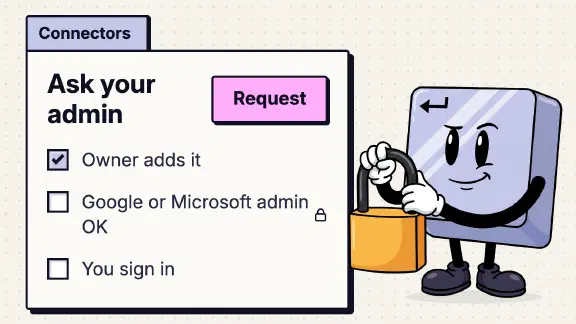
When a Claude connector tells you to ask your admin on a Team plan, the person you need is a Claude Owner or the Primary Owner. An Owner has to add each connector for the organization before anyone can connect it, and someone with the Admin role can’t. For Google Workspace or Microsoft 365, a second admin outside Claude may also have to act: the Google Workspace admin who marks Claude as trusted, or the Microsoft Entra Global Administrator who gives a one-time consent for the whole company. For Slack, a Slack admin may have to approve the app. Once that’s done, each person still signs in to the tool with their own account.
Anthropic’s Claude 101 course covers this in one line (“On Team and Enterprise plans, an organization Owner needs to add that connector for your organization first”) and moves on. So on November 12, 2026, I had Claude go through the connector pages of my company’s Team org, signed in as the Primary Owner, and open the add-a-connector screen without adding anything. Below is what you might see, who fixes it and where, then the detail for each. The other lessons are in the owner’s side of Claude 101.
Who fixes what?
| What you see | Who acts | Where |
|---|---|---|
| A “Request” button, or the connector isn’t there | A Claude Owner or the Primary Owner | Organization settings > Connectors > Add > All available |
| You can’t add a custom connector | A Claude Owner or the Primary Owner | Organization settings > Connectors > Add > Custom |
| “Access blocked: your institution’s admin needs to review Claude for Google Drive” | Your Google Workspace admin | admin.google.com > Security > Access and data control > API controls > Manage third-party app access |
| A Microsoft 365 error saying an administrator must grant app permissions | A Microsoft Entra Global Administrator | A one-time consent for your company’s Microsoft account |
| Slack won’t connect | A Slack workspace admin | Slack’s app approval, with the Claude in Slack app installed first |
| A connector tool that’s blocked or always asks | A Claude Owner | The connector’s tool permissions |
| A desktop extension you can’t install | A Claude Owner, if they turned on the allowlist | Organization settings > Connectors |
| “Only accessible from private projects” | Nobody. It’s a product limit | Use a private project |
| Research asks which connectors it may use | You | The dialog that opens when you send |
Who is “your admin” on Claude Team?
An Owner. Claude’s own Add member dialog describes the three roles you can give someone in one line each: User “Can create chats”, Admin “Can manage user membership”, Owner “Can manage user roles and organization settings”. There’s also one Primary Owner per organization. Anthropic’s roles table agrees: enabling integrations is an Owner and Primary Owner job, and an Admin can invite and remove people and little else.
That matters because the course and several help pages say “admin” loosely. A firm that made its office manager an Admin so they could handle Claude finds they can’t add a single connector. If you’re setting up roles, make a second person an Owner, not an Admin.
To find out who your Owner is, look in your own account settings. Organization settings has an “Internal help contact” field, and the page says “By default, they see the primary owner in their account settings.” Anthropic’s roles page puts it the same way: “If you’re unsure of your organization’s Primary Owner, you can check by going to Settings > Account.”
How does an Owner add a connector for the team?
In our org on November 12 the path was Organization settings > Connectors > Add > All available. That opens a “Directory” dialog with a search box and a filter. Each connector’s card has a “+” to add it for the organization, an “Added” badge once it’s added, and an “Auto-connect” badge where Claude can sign people in for you (more on that below). “Custom” on the same menu is for a connector that isn’t in the directory, and only Owners and Primary Owners can add those on Team.
Anthropic’s pages describe the same step three ways. One article says to click “Browse connectors” at the bottom of the page, then “Add to your team”. The Microsoft 365 article says "+ Add" at the top of the page, then “All available”, which is the one that matched our screen. Anthropic’s newer connector docs say “the button reads Connect for your team”. When I had Claude run a Research report on Team setup the same day, it gave the “Browse connectors” path too. If your screen doesn’t match a guide, trust the screen.
Each Google tool has its own card and its own “+” in the directory: Google Drive, Gmail, Google Calendar, Google Sheets and Google Docs. Add the ones your team needs.
Adding a connector doesn’t connect anyone. Anthropic says “Enabling a connector makes it available to your team, but it doesn’t automatically grant anyone access. Each person still needs to authenticate individually before they can use it.” That’s also why Claude reaches only what each person could already open in the tool.
The directory also says who made each connector. On November 12 the Google ones read “by Google”, Slack “by Slack” and Notion “by Notion”, while Microsoft 365 read “by Anthropic”. That’s whose code you’re letting into your tools, so it’s worth a look before you click “+”.
Where do connector requests go?
To the Owner, if requests are on, and on Team they are by default. Our Connectors page shows “Let members request connectors” switched on, with the note “Requests appear on this page for review.” The help center says members “select ‘Request’ on the connector’s page”, that “On Team plans, connector requests are on by default”, and that only Owners and Primary Owners can change the setting.
Requests land in Organization settings > Notifications, which in our org has two tabs, Updates and Requests. From there an Owner can approve, decline, or “Decline it and block the connector”. Anthropic’s directory docs say the member’s button “changes to Requested while the request is pending”, and Claude shows them the outcome “the next time they open the connectors directory.”
If you’re the Owner, check that Requests tab. A request nobody answers looks to the person who sent it exactly like a no.
What’s auto-connect, and do I need it?
Our Connectors page had a banner offering it: connectors that “can use managed authorization”, with the line “Set them up so members connect without signing in to each one” and a “Set up auto-connect” button. Anthropic’s description is that “you authorize a connector once for your entire organization, and your team inherits access automatically on first login”, and it’s in beta for Team.
Not every connector can do it. Our page noted “Box doesn’t support managed authorization” and “Asana only supports IdP-managed authorization, which requires SSO with a supported identity provider.” In our directory the Auto-connect badge was on Slack, Canva, Notion, Atlassian and Figma.
You don’t need it on day one. It saves each person one sign-in per tool, and a team of ten can do those sign-ins together in one sitting. I didn’t set it up for this test, so I can’t tell you what members see when it’s on.
Why can’t I install a desktop extension?
Probably not because of Claude’s settings. Our page has a switch called “Limit the desktop extensions that your team can install”, and it’s off. The help center says that’s the default: with the allowlist off, “users will be able to access all desktop extensions in the registry.” If an Owner turned it on, you can install only the extensions they allowed, so ask them. If it’s off, the allowlist isn’t what’s stopping you.
Why is a connector greyed out in a shared project?
Because connector files go only into private projects, and I found no setting that changes that. In a project shared with the whole company, Claude’s add-files menu showed GitHub and Notion greyed out, and hovering over Notion said “Only accessible from private projects”. The Google Drive help page says the same for Drive: “The Google Drive connector is only available when adding to Files in private projects. This option will be disabled for shared projects.”
So it’s not a permission you can ask for. Keep connector files in a private project, or upload copies to the shared one and remember they won’t update when the original does.
Why does Research ask which connectors it can use?
Because it’s about to use them without asking again. When you turn on Research from the “+” menu and send, a dialog opens: “Enable connectors for Claude to use in research”, with a switch for each of your connectors, a “Disable all tools” option, an “Always allow” box for the ones you picked, a warning to “Ensure you have appropriate permissions and trust third-party tools before continuing”, and “Skip” or “Confirm”.
Nobody else is involved here. You decide, per run. That dialog is the checkpoint, since Anthropic says “During research, Claude can use tools from your connectors automatically, without asking for approval each time.” I’d leave “Always allow” unticked for anything that can send email or post messages.
Two more things from that page. Research needs web search on, which on Team is an Owner’s switch. And when you start Research in the Claude mobile app it “only searches the web and doesn’t use your connectors”, with no error.
The second admin: Google, Microsoft and Slack
Each of these has its own post, so here’s only who to find.
- Google Workspace. If someone sees “Access blocked”, your Google Workspace admin adds Claude as a trusted app in the Google admin console and waits about 15 minutes. The click path and what else that admin can lock down are in the Google Drive post.
- Microsoft 365. A Microsoft Entra Global Administrator gives a one-time consent for the whole company. Until then, Anthropic says members “see an error message indicating that an administrator must grant app permissions.” Who holds that role at a small firm, and what the consent covers, is in the Microsoft 365 post.
- Slack. Anthropic’s Slack page says to install the Claude in Slack app before you enable the connector, and “A Slack admin must approve the app for your workspace before individual users can connect to it.” The same page now says it “covers the earlier per-user Claude in Slack app” and that “The current product is Claude Tag,” which an Owner sets up once for the whole workspace. Its connector steps still name the earlier app. Slack’s own default may let members install apps without approval, which the Slack post covers.
In a ten-person firm these can be the same person as the Claude Owner. Find out before you start, because a request that bounces between two admins, each thinking the other one has to act, just sits there.
The short version of the owner-approval step, with what to set each tool to afterwards, is in the Team setup post. What each common connector can change is in the connector table.
What I couldn’t confirm
- The member’s Request button. I read the Owner’s side only. What a member sees on a connector the Owner hasn’t added, and what a blocked connector looks like to them, comes from Anthropic’s docs, not a test.
- Google’s “Access blocked” screen. I didn’t connect Google Drive as a member, so I haven’t seen whether our own Google Workspace blocks it.
- Owners seeing different directories. Someone reported a connector that one Owner could see in the directory and another Owner in the same Team org couldn’t. I haven’t hit it. If your Owner can’t find a connector you can see, that report is why I’d have a second Owner look.
What should I do next?
If you’re the Owner, open Organization settings > Connectors and Notifications > Requests today, add what the team’s first jobs need, and set anything that sends, deletes or changes data to Needs approval. Then score your org with the ten-question team check, no email needed.
If you’d rather have it done, my setup starts at $3,997 for one team of up to 25, and you pay for your own seats. One job live on your real work by day 14, or all your money back. It connects your tools with the whole team in one session, second admins included.