Is It Safe to Connect Claude to Dropbox?
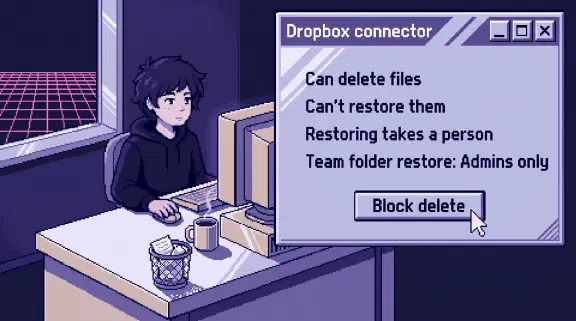
Safe enough if you block delete first, because the connector can remove your Dropbox files and can’t bring them back. Dropbox’s own notes for that server say “Revision history and restore workflows are not available until the required Dropbox MCP tools are exposed.” The undo belongs to a person at dropbox.com, and on a team the big undos belong to an admin.
I haven’t tested this connector. Everything here comes from public pages I read on October 31, 2026.
The listing in Claude’s directory has 19 tools, and its summary says you can “search, organize, save generated content, and create sharing links.” Delete is one of the 19, and it isn’t in that sentence. The table of what 33 connectors can change compares it with your other apps.
Can Claude access my Dropbox files?
Yes, whatever your account can reach. Dropbox says “Claude can only access content and complete actions that you already have permission to use in Dropbox.” The listing publishes only tool names, so the grouping and settings here are mine:
| Tools | What they do | What I’d set first |
|---|---|---|
search, list_folder, fetch, file_preview, get_file_metadata, who_am_i, check_job_status, list_shared_links, get_shared_link_metadata, list_file_requests, get_file_request | Read | Always allow |
download_link | Makes a download link | Needs approval |
create_file, create_folder, copy | Add files and folders | Needs approval |
move | Relocates files, and can change who sees them | Needs approval |
create_shared_link, create_file_request | Open a way out and a way in | Needs approval |
delete | Deletes files and folders | Blocked |
Only owners on Team and Enterprise can set these for everyone. Anthropic says they choose “Always allow, Needs approval, or Blocked”, and “individual users can’t override it.”
Only the tool settings separate saving from deleting. Dropbox’s scope list gives one permission, files.content.write, the job to “create folders, create files, copy content, move content, delete content”.
Can I limit Claude to one Dropbox folder?
Not with any setting I could find. Dropbox defines a narrower kind of app access, “App Folder”, where “The app can only access files in that folder.” Its Claude page offers no folder choice and asks for “View your files and folders.” To check after you connect, open Settings, Apps in Dropbox, where each app shows its access next to Permissions.
Two things narrow it:
- A separate team member. Connect a seat that belongs only to the folders you want Claude in, which an admin sets under Members, Manage access. It costs a seat. Taking someone off a team folder makes it restricted, and “New team members must be added manually.”
- View-only access. Team folders can be set to Can view per person. Anthropic says a person “still needs the underlying permission in the source system”, so a view-only seat can’t delete there through Claude.
Can Claude delete my Dropbox files?
Yes. Dropbox only describes this tool for its beta server, on its MCP page: “Move one or more files or folders to Deleted files. Files aren’t deleted permanently. Recovery depends on your plan’s recovery window.” That matches Drive’s trash_file, and it’s what I’d plan on here. Step 3 below checks it.
Dropbox’s Claude page doesn’t list deleting. It says “Organize Dropbox folders and content.”
The plugin’s cleanup skill says “Never delete based only on a broad pattern like “old files” or “duplicates” without listing exact targets.” That’s an instruction to Claude, in a separate install from the connector. Nobody can talk Claude out of an owner’s Blocked setting.
Can Claude restore files it deleted?
No. None of the 19 tools on the listing restores anything, and the same skill tells Claude to “Explain that recovery is unavailable until the Dropbox restore tool is exposed.” That plugin uses mcp.dropbox.com/claude_app_mcp, the address on the directory listing.
The restore tools live at a different address. Dropbox’s MCP page documents mcp.dropbox.com/mcp, a beta you add as a custom connector. It has 8 tool names the listing doesn’t have, including RestoreFileRevision and RestoreFolder, which rewinds “a folder and its contents to an earlier point in time.” I wouldn’t add it to get an undo. A person can already recover a delete, and this gives an AI a bulk overwrite.
Recovery stays with a person:
| What went wrong | Way back | Who can do it | How far back |
|---|---|---|---|
| A few files deleted | Deleted files | You. In a shared folder, you need Can edit | 30 days on Basic, Plus, Family. 180 on Professional, Essentials, Standard, Business. 365 on Advanced, Business Plus, Enterprise, Education |
| Many files deleted, moved or renamed | Rewind | On teams, admins by default. Not on Basic | Your account’s version history |
| A team folder deleted | Restore | “Only admins” | Not stated |
Rewind has three catches:
- The default. “By default, only admins on Dropbox team accounts can use Dropbox Rewind.” That setting stops members rewinding their own accounts, and “Admins can’t log in as a team member to rewind their team member’s account.” An admin has to switch Rewind folders to All members first.
- Team folders are separate. Rewinding your whole account on a team “will only rewind your personal files and shared folders.” You repeat it per team folder.
- It’s broad. It undoes all file changes after the point you pick, so good edits from colleagues go too.
Upgrading after the accident won’t help. Longer history “doesn’t apply retroactively.”
What can Claude do to team folders?
One person’s connection reaches folders everyone depends on. Dropbox’s team folder page says if top-level folder management is set to All members, “all team members will be able to create, rename, move, or delete top-level team folders.” On Business and Business Plus, all members can create them by default. Deleting one asks you to confirm “Delete for everyone”, and only an admin can bring it back. Set Top-level folder management to Admins only, in the admin console’s Content settings.
move is the tool I’d watch, because it changes access. The same page says a team folder moved into another team folder “adopts the same permissions as its new location.” Moved files don’t show up as deleted. Read the destination path on every approval.
Can Claude share my Dropbox files with outsiders?
Yes, through links and file requests.
For links, Dropbox’s Claude page says “Recipients must request access before they can view the content,” and calls that approval “an added security measure.” The plugin’s notes say this server can’t invite named people: “Recipient-based sharing and viewer management are not available”. The option “to invite up to 25 viewers by email” belongs to the beta server. Test one link in a private window before you trust any of that.
If you run a team, the admin settings are stronger than the defaults, which “Team members can override”. Turning off external link sharing holds, but “existing links created by team members will no longer work for people outside the team.” Check what you’d break before you flip it. Blanket link restrictions are narrower: people who haven’t been added to one of your team’s shared folders can’t get in through a link.
File requests run the other way: “Anyone can send a file to you, whether they have a Dropbox account or not.”
Can a file in Dropbox trick Claude?
Yes. Hidden instructions in a document are called prompt injection, and Anthropic’s Cowork safety page says they work when “Claude can read information outside your trusted boundary, and can perform actions that could compromise the user.”
Dropbox can meet both. A file request or a shared folder brings in documents strangers wrote, fetch reads them, and create_shared_link and download_link open a way out. Needs approval on the link tools breaks the chain, if you read the prompt.
Is Dropbox safe with AI, and does Claude train on my files?
Not by default on Team and Enterprise. Anthropic says “we will not use your inputs or outputs from our commercial products”, unless you report feedback, for example with the thumbs buttons. On personal plans it’s a setting, and training data “does not include raw content from connectors”, though it may include what’s “directly copied into your conversation.” A summary Claude writes back is your chat, which is one more reason to keep company files on company plans.
Dropbox’s promise covers Dropbox: “We will not build generative AI models using customer content without consent.” Claude falls under Anthropic’s terms.
How do I connect Claude to Dropbox safely?
- Look up your plan’s recovery window and who on your team can Rewind, before you need either.
- Ask who’s already connected. A Dropbox admin can block apps for the team, but that “doesn’t disconnect team members who are already connected”.
- Test on a throwaway folder first. An owner enables the connector, then each person signs in with their own account. Under Customize, Connectors, Tool permissions, set
deleteto Needs approval. Put two junk files in the folder. Ask Claude to delete one, check that it landed in Deleted files, and restore it yourself. Ask Claude to link the other, and open that link in a private window. - Set the tools for everyone using the table above, then ask Claude to delete something again. If it does, fix the setting before anyone else connects.
- Write down who connected, and on departure disconnect in Claude and under Settings, Apps in Dropbox.
What I couldn’t confirm
- How the listing’s
deletebehaves when nobody has set the tool: whether Claude asks first, and whether it matches the beta server’s move to Deleted files. Dropbox’s confirmation rules are written for the plugin. - Whether a Claude link still needs approval when your team’s default access for shared links is Anyone.
- Whether
deleteworks on a top-level team folder when the member has that right. - Whether Rewind puts permissions back after a
move. It won’t undo “File or folder membership changes”, and Dropbox doesn’t say whether a move counts. - How Claude’s actions appear in Dropbox’s activity log, and whether anything separates them from the person’s own.
Should I connect Claude to Dropbox?
Yes for finding and reading files. Keep delete blocked until someone can name who restores files and how far back your plan goes. For the rules around it, use the one-page connector policy in the QuickBooks post.
If you’d rather plan which of your tools to connect, and how, the setup planner asks six questions and gives you a plan without asking for an email. If you want a second look at a list you already have, bring your connected apps to a 30-minute call.