Is It Safe to Connect Claude to HubSpot?
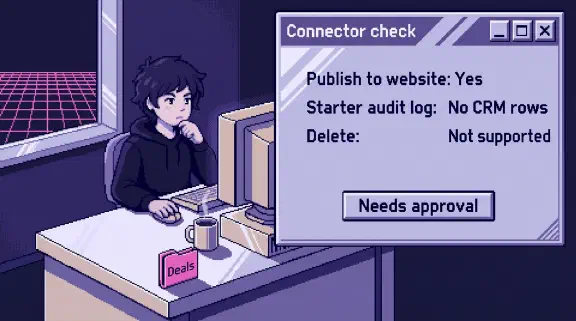
Safe enough for CRM work, if you set the write tools to Needs approval before anyone uses it and decide who owns anything public, because it can also put things on your website.
I haven’t tested this connector. Everything here comes from public pages I read on October 30, 2026.
Claude’s directory lists 36 tools and sums the connector up as “Search and update contacts, companies, deals, tickets, campaigns, and more”. That blurb leaves out publishing. HubSpot’s own help page gives “draft and publish a blog post” as its example prompt. A sales team connecting this for pipeline reviews also connects the company blog, if the person connecting has the permissions. The table of what 33 connectors can change compares it with your other apps.
What can Claude do in HubSpot?
A lot, going by HubSpot’s help page, developer docs and What’s New page:
| Area | What Claude can do |
|---|---|
| CRM records | Read, create and update contacts, leads, companies, deals, tickets and custom objects |
| Activity | Read the full history of emails, calls, meetings, notes and tasks, and log new ones |
| Inboxes | Read live chat, team email, SMS and WhatsApp messages, with an optional permission |
| Public content | Create, edit and publish blog posts, website pages and landing pages. Unpublish blog posts and website pages |
| Marketing emails | Depends which HubSpot page you read (more below) |
| Quotes (beta) | Create and manage, on Revenue Hub Professional or Enterprise, with an optional permission |
| Segments | Create static segments, add and remove records from existing ones |
| Account setup | Create and manage pipelines, create custom properties |
It can’t delete. A wrong deal stage or an unpublished pricing page needs no delete.
The connector mirrors your HubSpot permissions. A rep who can’t publish in HubSpot can’t publish through Claude. The grant to worry about is a Super Admin’s. They need nobody’s approval to connect and can send marketing emails. Super Admins can also limit who installs it and turn optional permissions off for every user, admins included. Required permissions stay on.
Can Claude publish to my website through HubSpot?
Yes. HubSpot says it can “Create, edit, publish, and unpublish blog posts” (since August) and website pages (since September). Publishing also sets off things nobody asked for:
- It can invent an author. HubSpot’s help page says “If the author’s email doesn’t match an existing HubSpot author, Claude will automatically create a new one.” HubSpot also generates an author page “for each blog that includes all posts attributed to the author.” So a typo in an email address can leave you with a second you on the blog.
- Your blog email fires on publish. If you have a Blog/RSS email set up, HubSpot says it “will be sent automatically when you publish new content to your blog or RSS feed.” Plan on a post from a chat reaching your list.
- It can take a page down. Unpublish slips past the no-delete rule, and your live page disappears.
The directory shows one tool per content type (manage_blog_post, manage_website_page, manage_landing_page) and none named publish. Expect blocking a tool to block drafting along with publishing, a fine trade if your sales team doesn’t need them.
Can Claude send marketing emails from HubSpot?
HubSpot’s pages disagree, so treat the answer as yes until you’ve tested it.
- The What’s New page says: “Create or edit drafts, configure send details, schedule, and publish”.
- The developer docs say: “create and update email drafts.”
- The help page’s FAQ says: “Claude will provide the drafted content for you to implement in HubSpot.”
In HubSpot, the Publish permission on marketing emails lets a user “publish, send marketing emails, and save emails to use in workflows”. Block manage_marketing_email until you’ve seen what it does.
HubSpot’s pitch for quotes is “Go from deal to sent quote in one conversation.” A person should read a quote before a customer does.
Will Claude ask before it changes a deal?
Not unless you make sure of it. One HubSpot page says “Changes show a preview and need your approval.” The help page is the one to plan around: Claude “may show you what the proposed changes are”, and “If you set the connector to Always allow, edits may occur without asking for approval.” Neither says which setting you start on.
HubSpot’s own advice: open the connector’s tool settings in Claude and set Write tools to Needs Approval. On Team and Enterprise plans, owners can set this, under Customize, Connectors, to “Always allow, Needs approval, or Blocked” for each tool across the organization, and “individual users can’t override it.” I’d want that for a sales team, because one rep’s Always allow on a Friday afternoon is how a pipeline gets strange.
Bulk changes are capped at 10 records at a time, and your pipeline validation rules still apply. Workflows enroll a record “when a criteria is true”. If closing a deal starts an onboarding email or a task for finance, assume the Claude version starts it too.
Can I see what Claude changed in HubSpot?
That depends on your HubSpot plan. The help page says create and update actions are attributed in the Audit Log “to both the user and the Claude connector”, and that Super Admins can see who connected and when. The connector itself is available on “All products and plans”. The audit log article is narrower:
| HubSpot plan | Audit log |
|---|---|
| Free | Not listed as having one |
| Starter | Logins, security activity, content activity, record views. No row for CRM objects, property value changes or lists |
| Professional, Enterprise | All of the above, plus CRM objects such as contacts, deals and quotes, property value changes, lists and workflows |
A team on Starter can’t count on that log to show which deals Claude moved. Only Super Admins can view it. Claude’s own audit logs are Enterprise only.
Every HubSpot plan does get property history on a record, with the date and source of each change, and an export of one property’s history across records. That’s a slow way to answer “what did Claude change this week?” The record’s Restore button “only appears when the source is a CRM UI edit, import, or workflow”, so plan on fixing Claude’s changes by hand. On Starter, keep every write on Needs Approval.
What can a sales rep read through it?
Whatever they can see in HubSpot, pulled into a chat. That includes activity history and, with the optional conversations permission, chat, SMS and WhatsApp threads. For those, the developer docs add that “Help desk conversations are visible to all users.” A restricted conversations inbox stays restricted.
HubSpot accepts Pro and Max, which are personal plans, so a rep can pull customer history into a personal account. The control is on Claude Enterprise, which can stop accounts outside the organization connecting HubSpot with an email on your verified domain. On anything smaller, it’s a written rule.
If you hold EU contacts, HubSpot’s data center promise stops at the door: “Once your data is in the Anthropic platform, the terms you have with Anthropic will govern where and how your data is processed”. This isn’t legal advice.
Does Claude train on your HubSpot data?
Mostly no. HubSpot says Anthropic doesn’t use it “except in certain instances, like when a customer chooses to provide feedback or opts into training.”
On Free, Pro and Max, Anthropic says training data “does not include raw content from connectors” unless it’s “directly copied into your conversation with Claude.” Claude’s written summary of a customer’s call history is part of the conversation. So on a personal plan, turn the training setting off. Skip the thumbs up and down too, since a rating stores “the entire related conversation” for up to 5 years. On commercial plans, inputs and outputs aren’t used by default, but a rating can be, and owners can switch ratings off with the Rate chats setting.
How do I test the HubSpot connector safely?
The connector is on all plans, so make a separate free HubSpot account with made-up contacts and test there. You still need a paid Claude plan. You can only connect one account at a time, so disconnect your real one first. Workflows need Professional or Enterprise, so a free account can’t run step 3.
- Read the permissions screen. Super Admins select optional permissions during approval. Note what it lists for content and email. HubSpot says marketing emails need you to “Enable the marketing email scopes”.
- Set write tools to Needs Approval. Ask Claude to move one deal and watch for the approval.
- Move a deal into a stage that triggers a workflow, and see whether the workflow runs.
- Publish a blog post with a made-up author email. Check for a new author and a live author page, and check whether a Blog/RSS email went out.
- Ask Claude to schedule a marketing email to a segment holding one test contact, your own address.
How do I disconnect Claude from HubSpot?
In Claude, open Customize, Connectors, pick HubSpot, then Disconnect. (HubSpot’s page calls the first step Settings, Connectors.) In HubSpot, a Super Admin can uninstall it for one user on the Approved apps tab, or revoke approval to remove it for everyone. They can reinstall unless you also take them off the install list. When a rep leaves, do both sides.
Existing users have to reconnect to pick up new permissions, so check what it asks for each time.
What I couldn’t confirm
- Whether
manage_marketing_emailcan actually send or schedule to real recipients. - Whether publishing through the connector fires a Blog/RSS email, and whether an auto-created author gets a live author page.
- Whether connector changes enroll records in workflows.
- Whether publishing is a required permission or an optional one a Super Admin can turn off.
- Whether connector reads appear as record views in the audit log, and what a connector change shows as its source in property history.
What should I do before I click Allow?
Decide who owns anything public, connect from an account that can’t publish if your job is the pipeline, and set writes to Needs Approval. For the rules around it, use the one-page connector policy in the QuickBooks post.
If you’d rather plan which of your tools to connect, and how, the setup planner asks six questions and gives you a plan without asking for an email. If you want a second look at a list you already have, bring your connected apps to a 30-minute call.